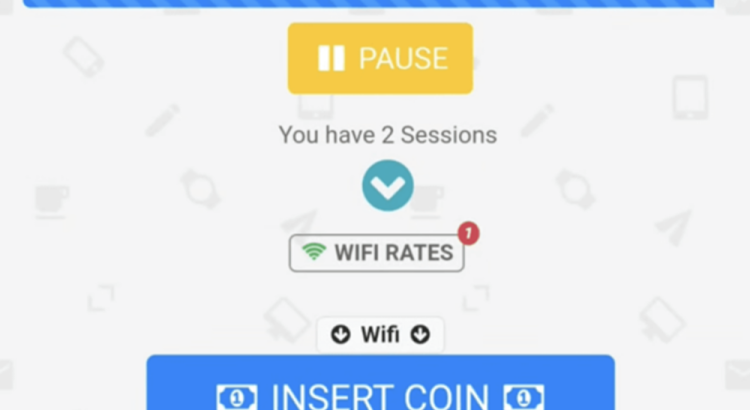
10.0.0.1 Piso WiFi Pause Time Login and Admin.
Quick Guide: How Piso WiFi Pause & Resume Time Works:
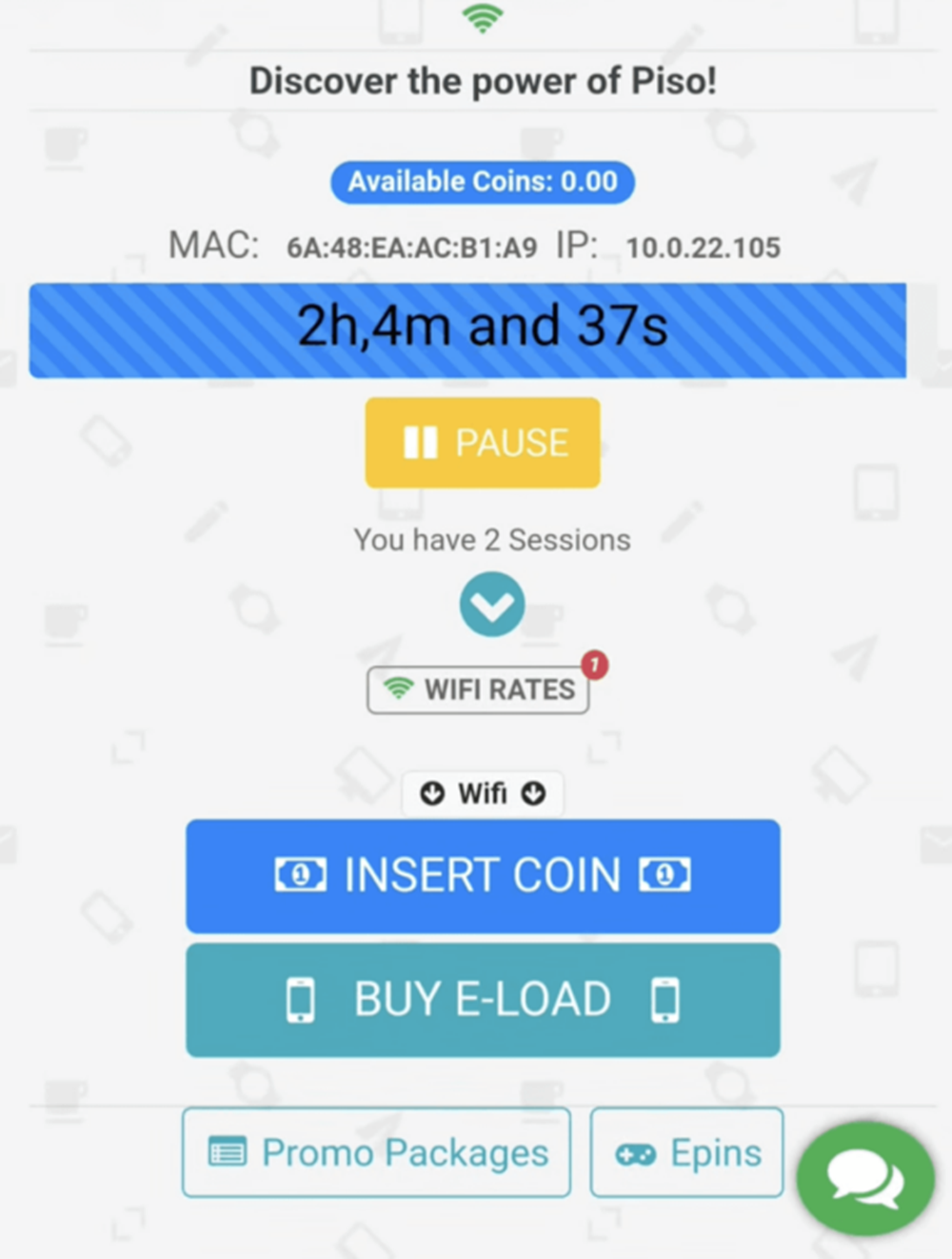
Many Piso WiFi vending machines include a built-in Pause / Resume Time feature in the user portal. This feature lets users temporarily stop their internet session and continue it later, which helps prevent wasting paid minutes.
The pause/resume option is commonly available in Piso WiFi systems such as LPB Piso WiFi, PisoFi, and similar platforms. However, availability depends on the machine’s configuration—an admin can disable it, limit it, or set conditions (for example, allowing pause only when remaining time is above a certain threshold like 60 minutes).
Quick Guide: How to Pause and Resume Internet Time on Piso WiFi (Users)
- Connect to the Piso WiFi network using the WiFi menu on your phone.
- Tap the “Sign In” notification, or open a browser (such as Google Chrome).
- Go to http://10.0.0.1 to open the Piso WiFi user portal.
- Tap “Pause Time” to temporarily stop your session timer.
- When you want to continue, return to the portal and tap “Resume Time.”
Note: If you do not see the Pause option, it may be disabled by the machine administrator.
Why Pause/Resume May Not Be Available
The Pause/Resume buttons can be disabled or restricted by the Piso WiFi operator. Administrators have control over these options through the Piso WiFi admin panel, where they can enable or disable Pause/Resume, set time limits for pausing, restrict pause usage based on session rules, and apply different rules for coin users versus voucher users.
Quick Guide: How to Enable or Disable Pause & Resume (Admins)
- Connect to the Piso WiFi network using your phone or computer.
- Open a browser and go to http://10.0.0.1/admin.
- Log in using admin credentials (default username: admin, default password: 123456789, unless changed).
- Click the ID / Menu icon on the left side.
- Select Portal Settings.
- Under Insert Coin Mode and Voucher Code Mode, locate Pause Time.
- Choose Enable or Disable, then save your settings.
Need More Help? We have add full guides to the LPB Piso Wifi system, below.
The Piso WiFi vendo system is a coin-, voucher-, or load-based WiFi hotspot that sells internet time through a captive portal. That portal often lives at 10.0.0.1, where users check remaining minutes, pause time, resume time, redeem voucher codes, and troubleshoot common connection problems.
Below, we explain you everything about the 10.0.0.1 Piso WiFi gateway address, including where to find the LPB pause time login page, how to log in (user portal and admin panel), how pause time works, how to log out safely, the difference between confusing IP addresses (10.0.0.1 vs 10.10.0.1 vs 1.0.0.1 and common misspellings), and a complete troubleshooting checklist.
What Is Piso WiFi?
Piso WiFi is a pay-per-use WiFi system commonly found in sari-sari stores, boarding houses, small cafés, and public areas across the Philippines. Instead of paying monthly like a home internet plan, you pay small amounts (₱1, ₱5, ₱10, and so on) to receive a fixed amount of internet time. It’s popular because it is affordable, flexible, and easy to access for casual users.
Most Piso WiFi setups include a router and software that controls access. When you connect to the Piso WiFi network, the system redirects you to a local “portal page” that lets you buy time (coins/voucher), view session status, and sometimes pause/resume. This portal is usually a local webpage hosted inside the vendo’s network, which is why it commonly uses private IP addresses like 10.0.0.1.
What Is the 10.0.0.1 Piso WiFi Gateway Address?
The 10.0.0.1 Piso WiFi gateway address is a private, local IP address that often acts as the “front door” to the Piso WiFi portal. You can think of it like a small website inside the vendo’s router. It typically works only if your device is connected to that specific Piso WiFi network, because 10.0.0.1 is not a public internet address.
Many Piso WiFi systems choose 10.0.0.1 because it is easy to standardize and it avoids conflicts with common home router IPs like 192.168.1.1. It also fits into the wider private network block (10.0.0.0/8), which is frequently used for local networks. For users, the practical takeaway is simple: connect to the Piso WiFi network first, then open 10.0.0.1 in your browser.
How to Confirm You’re Using the Correct Gateway
Not every vendo uses 10.0.0.1. Some use 10.10.0.1, 192.168.1.1, 192.168.0.1, or another local IP depending on the firmware and setup. If 10.0.0.1 doesn’t open, the fastest way is to check your device’s “default gateway” or “router” IP and open that address instead. The steps below show you how to find it on mobile and on Windows.
How to Access 10.0.0.1 in a Browser (Mobile + Desktop)
Step-by-Step: 10.0.0.1 Piso WiFi Login on Android (Chrome)
- Open your phone’s WiFi settings and connect to the Piso WiFi network (SSID). Make sure it says “Connected.”
- Turn OFF mobile data temporarily. Many phones will “fallback” to mobile data and the portal won’t load if data stays on.
- Disable any VPN apps for a moment. VPNs can block captive portal redirects or route traffic away from the local gateway.
- Open Chrome and tap the address bar at the top.
- Type 10.0.0.1 and press Enter/Go. If nothing happens, try http://10.0.0.1.
- If you still don’t see the portal, open http://neverssl.com (a non-HTTPS page) to force the captive portal redirect, then try 10.0.0.1 again.
If you see a “Sign in to WiFi network” notification, tap it. That notification often opens the captive portal in a mini-browser and takes you directly to the Piso WiFi page. If the portal loads but buttons don’t work, refresh once and wait a few seconds—some portals load scripts slowly on busy networks.
Step-by-Step: 10.0.0.1 Piso WiFi Login on iPhone (Safari)
- Go to Settings > WiFi and connect to the Piso WiFi network.
- Turn off Cellular Data briefly (Settings > Cellular) so your phone doesn’t bypass the WiFi route.
- Open Safari and type 10.0.0.1 in the address bar, then tap Go.
- If the portal doesn’t appear, visit http://neverssl.com and then retry http://10.0.0.1.
- If you get stuck on a blank page, close Safari completely and reopen it, then try again.
iPhones can be strict about captive portal detection when a network is overloaded. If Safari keeps spinning, forget the Piso WiFi network, reconnect, and try again. Also make sure “Private Relay” (if enabled) isn’t interfering, because it can sometimes affect captive portal behavior.
Step-by-Step: 10.0.0.1 Piso WiFi Login on Windows (Chrome/Edge)
- Click the WiFi icon on the taskbar and connect to the Piso WiFi SSID.
- Wait for Windows to show “Connected” (even if it says “No Internet”). For captive portals, “No Internet” can be normal until you buy time.
- Open Chrome or Edge and type http://10.0.0.1 in the address bar.
- If the portal still won’t load, type http://neverssl.com to trigger the redirect.
- Temporarily disable VPN, “Secure DNS,” or proxy settings if you use them, then try again.
On Windows, captive portals sometimes open automatically in a small browser window. If that pops up, complete the portal steps there. If it doesn’t pop up, use the manual steps above and try a non-HTTPS page first.
How to Find the LPB Piso WiFi 10.0.0.1 Pause Time Login Page (and How Do I Log In?)
“LPB Piso WiFi” commonly refers to a popular firmware or vendo system used by many operators. The exact layout varies, but most LPB-style portals have a main landing page, a client dashboard, and optionally an admin panel. Users usually want the pause time page, which is typically part of the client dashboard rather than a separate “login” like a traditional website.
Step-by-Step: Find the Pause Time Dashboard (User)
- Connect to the Piso WiFi SSID and open http://10.0.0.1.
- Look for a dashboard or status view that shows “Time Remaining,” “Balance,” “Session,” or “Client.”
- If the system redirects you automatically, take note of the URL. Common examples include:
- 10.0.0.1/captive-portal/default/index.html (portal landing page)
- 10.0.0.1/client?page=dashboard (client dashboard page)
- 10.0.0.1/status (status page; often operator/admin-related)
If you are a regular user, you typically “log in” by having an active session (paid minutes or voucher time) recognized by the system. Some portals show a “Continue,” “Resume,” or “Client Dashboard” button rather than a username/password. If you see a username/password prompt on a public Piso WiFi network, that usually means you’re trying to access the admin area, not the user pause dashboard.
Step-by-Step: How to Log In (User Session) vs Log In (Admin)
There are two “logins” that people confuse:
- User portal access: You connect to the WiFi and open 10.0.0.1. Your “session” is recognized if you paid or redeemed a voucher. Usually no username/password is needed.
- Admin login: Operators use a restricted page (often /admin) that requires credentials to change prices, pause rules, vouchers, and settings.
If your goal is pause time, you are usually looking for the user portal/dashboard. If your goal is to configure the machine (LPB settings), you need admin access and permission from the owner.
How to Use the 10.0.0.1 Piso WiFi Pause Time Feature
How Pause Time Works (Simple Explanation)
Pause time is designed to protect your paid minutes when you are not actively using the internet. Instead of counting down continuously, the timer stops when you press Pause and resumes when you press Resume. This is valuable on public vendo networks because users frequently step away, experience signal drops, or need to switch tasks.
Behind the scenes, most systems remember your paused time using a device identifier (often MAC-based) and/or browser session cookies. That’s why clearing cookies, switching browsers, or changing devices can cause pause time to “disappear.” Understanding this is the key to using pause effectively and avoiding wasted minutes.
Step-by-Step: How to Pause Time on 10.0.0.1 Piso WiFi
- Connect to the Piso WiFi network and open http://10.0.0.1.
- Confirm you have an active session by checking if “Time Remaining” or “Minutes Left” is visible.
- Tap or click Pause. Wait for a confirmation message such as “Paused,” “Session Paused,” or a paused timer icon.
- Stay connected for a few seconds after pausing so the portal has time to save your status.
- After confirmation, you can safely disconnect from WiFi if you want to leave, or keep connected if you’re only pausing briefly.
If the pause button does nothing, refresh the portal once and try again. On very busy networks, button clicks may lag. If it still fails, it may be disabled by the operator or there may be a portal error (see the troubleshooting section).
Step-by-Step: How to Resume Paused Time
- Reconnect to the same Piso WiFi network (the same SSID) where you paused your time.
- Open the same browser you used before (for example, Chrome if you paused in Chrome).
- Go to http://10.0.0.1 and find your client dashboard.
- Tap or click Resume, “Continue,” or “Start Session.”
- Confirm that the timer starts counting down and that you can browse normally.
If your pause time does not appear, do not panic immediately. First make sure you are using the same device and browser. Then try reloading the dashboard page once or twice and wait a few seconds, because some portals fetch session status slowly.
Legitimate “Diskarte” Tips to Maximize Your Paid Time (Without Cheating)
- Pause before you do anything that could disconnect you (calls, moving to another room, switching WiFi off, or stepping outside).
- Do not clear browser data while your time is paused; cookies often help the portal remember your session.
- Avoid Incognito/Private mode, because it may not store the session information needed to restore paused minutes.
- Use one device per session. Switching devices often breaks the link between your session and your paused time.
- Keep a screenshot of your remaining time right after you pause. If there’s a dispute, you can show the operator what you saw.
These tips are not hacks. They simply prevent common user errors that cause time loss. Most people who “lose minutes” on Piso WiFi lose them because of browser resets, device switching, or portal timeouts—not because the system is “stealing” time.
How to Logout From 10.0.0.1 Piso WiFi (What “Logout” Really Means)
On Piso WiFi, “logout” can mean different things depending on the system. Some portals provide a real Logout or Disconnect button that ends your session. Other systems end sessions automatically when your time runs out, and some simply rely on you disconnecting from WiFi or pausing time.
Step-by-Step: Logout If a Logout Button Exists
- Open http://10.0.0.1 and go to your session dashboard.
- Look for a button labeled Logout, Disconnect, or End Session.
- Tap/click it and wait for confirmation that the session ended.
- Turn off WiFi or forget the network to prevent auto-reconnect.
- Close the browser tab so the portal doesn’t keep refreshing in the background.
Step-by-Step: Logout When There Is No Button
- If you want to save time, press Pause first and wait for a confirmation.
- Disconnect from the Piso WiFi network by turning WiFi off or switching to another network.
- Close your browser tab. On phones, you can also fully close the browser app to reduce background refresh.
- When you return, reconnect to the same Piso WiFi and press Resume from the portal.
If you disconnect without pausing, your time may continue counting down depending on the operator’s configuration. That’s why “logout” is less important than understanding whether the system supports pause and how it handles disconnects.
10.0.0.1 vs 10.10.0.1 vs 10.10.0.x (What Is the Difference?)
All of these are private IP addresses, meaning they are used inside local networks and are not public internet sites. The biggest difference is simply which address your specific vendo/router uses as its gateway and portal host. If your network’s default gateway is 10.10.0.1, then opening 10.0.0.1 may do nothing—and vice versa.
How to Know Which One Is Correct for Your Piso WiFi
- Connect to the Piso WiFi network.
- Check your network details and look for “Gateway,” “Router,” or “Default Gateway.”
- Open that exact IP in a browser using http:// first (example: http://10.10.0.1).
- If the portal appears, that is the correct address for that specific vendo.
Many people type “10.10 0.1 login WiFi” because they saw that IP on their gateway settings or from a friend. The correct approach is always to check your device’s gateway for the network you’re currently on, because different hotspots can use different portal IPs.
10.0.0.1 vs 1.0.0.1 vs 1.0.0.0.1 vs 1.0.0.0.0.1 (Which Is Correct?)
This is one of the biggest sources of confusion in search queries. Many users accidentally type the wrong IP, especially on small screens. Here’s the clear breakdown so you know what is valid and what is a typo.
Is 1.0.0.1 a Piso WiFi login IP?
Usually, no. 1.0.0.1 is commonly used as a public DNS resolver address (a service that helps your device translate website names into IPs). It is not typically used as a local gateway for Piso WiFi portals. If you open 1.0.0.1 in a browser, it generally won’t show a Piso WiFi portal unless a network is set up in a very unusual way.
What is 1.0.0.0.1?
1.0.0.0.1 is not a valid IPv4 address. IPv4 addresses have exactly four parts (A.B.C.D). If you see “1.0.0.0.1” in searches, it’s almost always a typing error, and the user likely meant 10.0.0.1 or 1.0.0.1.
What is 1.0.0.0.0.1?
This is also invalid for the same reason: it has too many parts. If someone typed “1.0.0.0.0.1,” the correct fix is to remove the extra “.0” segments and type the intended address. For Piso WiFi portals, that intended address is most often 10.0.0.1.
Which IP is the correct one for Piso WiFi portals?
In most Philippine Piso WiFi setups, the correct portal address is 10.0.0.1. However, some systems use other private IPs like 10.10.0.1. If you are unsure, always check the default gateway for the WiFi network you’re connected to and open that address.
10.0.0.1 Piso WiFi Troubleshooting Guide (Complete Checklist)
When Piso WiFi portals fail, the problem is usually one of five things: you are not on the correct network, mobile data/VPN is interfering, the portal needs a non-HTTPS trigger, your browser/session data is causing issues, or the vendo itself is down. The steps below walk you through a systematic approach so you can fix issues quickly instead of guessing.
Problem A: 10.0.0.1 Won’t Open at All
- Confirm you are connected to the Piso WiFi SSID (not a neighbor’s WiFi with a similar name).
- Turn off mobile data and disconnect any VPN.
- Type http://10.0.0.1 (include http://) instead of just 10.0.0.1.
- Open http://neverssl.com to trigger captive portal detection, then retry 10.0.0.1.
- Check your gateway IP. If it is 10.10.0.1 (or another IP), open that instead.
- If none of this works, the vendo/router may be offline or overloaded. Try again after a few minutes or ask the operator to restart it.
Problem B: Portal Opens, But Pause Time Is Missing
- Confirm you have active paid time. Many portals hide Pause until you have a running session.
- Refresh the dashboard once, then wait 5–10 seconds for the portal to load fully.
- Try opening the client dashboard URL (if the portal shows it), such as 10.0.0.1/client?page=dashboard.
- Understand that some operators disable pause intentionally. If pause is disabled, you won’t see it regardless of browser/device.
Problem C: Pause Time Disappeared (You Lost Your Remaining Minutes)
- Reconnect with the same device you used originally. Switching devices often breaks session recognition.
- Use the same browser (Chrome-to-Chrome, Safari-to-Safari). Different browsers often store different session data.
- Do not clear cookies/cache and do not use Incognito mode while trying to recover.
- Reload the portal and dashboard. Some systems take time to re-check your session status.
- If there was a power outage or vendo reboot, the session may have been reset and recovery might not be possible.
Problem D: “Connected, No Internet”
- This message is common before purchasing time. You may be connected to WiFi but not authorized yet.
- Open a browser and go to http://neverssl.com or http://example.com to trigger the portal.
- If the portal appears, proceed to buy time or enter a voucher code.
- If the portal does not appear, forget the WiFi network, reconnect, and try again.
Problem E: Captive Portal URL Looks Weird (Index/Status/Dashboard Paths)
It is normal to see longer URLs such as 10.0.0.1/captive-portal/default/index.html or 10.0.0.1/client?page=dashboard. Those are simply internal portal pages. If you get lost, the safest move is to return to http://10.0.0.1 and navigate using the portal’s own buttons, because those buttons are built for that firmware’s flow.
How to Redeem a Voucher Code on 10.0.0.1 Piso WiFi
Some Piso WiFi systems allow vouchers instead of coins. A voucher code is a prepaid code that adds minutes to your session. It is common in promotions, reseller setups, or places where coins are inconvenient.
Step-by-Step: Redeem a Voucher Code
- Connect to the Piso WiFi SSID.
- Open http://10.0.0.1 in your browser.
- Look for a field labeled “Voucher,” “Code,” “Redeem,” or “Enter Voucher Code.”
- Type the voucher carefully. Watch out for look-alike characters (0 vs O, 1 vs l).
- Submit the code and wait for confirmation that your time increased or your session activated.
- Open the dashboard to verify “Time Remaining” before you start browsing heavily.
What Is “10.0 0.1 Click Piso WiFi”?
This phrase usually means the user is trying to open the Piso WiFi portal by clicking or visiting 10.0.0.1. Many people type search-like phrases instead of direct instructions. The correct action is simple: connect to the Piso WiFi network, open a browser, and type http://10.0.0.1 in the address bar.
What Are the Risks of Using Piso WiFi?
Piso WiFi is a public or semi-public network, and like any public WiFi, it can carry privacy and security risks. If the network is poorly secured, a malicious user might attempt snooping or traffic interception. To reduce risk, prefer HTTPS websites, avoid logging into sensitive accounts on unknown pages, and consider using a reputable VPN for banking or important logins.
FAQ: 10.0.0.1 Piso WiFi Login, Pause Time, LPB, and Troubleshooting (20+ Questions)
1) What is 10.0.0.1 Piso WiFi login?
10.0.0.1 Piso WiFi login usually refers to the captive portal page where you buy time, redeem vouchers, and manage your session. It works only when you are connected to the Piso WiFi network that hosts that portal. If you try it on mobile data or a different WiFi, it often won’t load because 10.0.0.1 is a private local address.
2) What is 10.0.0.1 Piso WiFi pause time?
Pause time is a feature that stops the countdown of your purchased minutes when you are not using the connection. When you resume, the remaining minutes continue from where you paused. It helps users avoid wasting paid time during breaks, interruptions, or brief disconnections.
3) What is “10.0 0.1 click Piso WiFi”?
It’s a common keyword phrase that means “how do I open the portal at 10.0.0.1.” People type it like a search instruction rather than a technical command. The fix is to connect to the Piso WiFi SSID and type http://10.0.0.1 into your browser’s address bar.
4) How do I connect to 10.0.0.1 Wi-Fi?
You don’t connect to 10.0.0.1 directly, because it is not the WiFi network name—it is the portal IP. First connect to the Piso WiFi SSID (the network name you see in WiFi settings). Then open a browser and visit http://10.0.0.1 to access the portal.
5) How do I pause Piso WiFi in Chrome?
Connect to the Piso WiFi network, open Chrome, and go to http://10.0.0.1. Find the dashboard where your remaining time is shown, then press Pause and wait for confirmation. Avoid Incognito mode because it often doesn’t store cookies needed to restore your paused session.
6) How do I pause WiFi Piso in Windows?
On Windows, connect to the Piso WiFi SSID and open Chrome or Edge. Visit http://10.0.0.1 and locate your client dashboard showing time remaining. Click Pause and wait a few seconds so the portal can save your paused state properly.
7) Why did my Piso WiFi pause by itself?
Some systems auto-pause or temporarily halt traffic when signal drops, the portal refreshes, or the router is overloaded. It can also appear “paused” if your device disconnected briefly and the session didn’t resume automatically. The best move is to reconnect, reload the dashboard, and press Resume if available.
8) Why does my pause time disappear?
Pause time can disappear if you clear browser cookies/cache, switch browsers, use private/incognito mode, or change devices. Many portals identify sessions using cookies and device identifiers, so those changes can make the system “forget” you. Power interruptions or vendo reboots can also reset session records in some setups.
9) How do I recover pause time on 10.0.0.1?
First, reconnect using the same device and the same browser you used when you paused. Then open http://10.0.0.1 and check the dashboard for “Resume” or your remaining minutes. If the vendo rebooted or the session expired, recovery may not be possible depending on the operator’s configuration.
10) How do I log out from 10.0.0.1 Piso WiFi?
Some portals provide a logout/disconnect button that ends your session immediately. If there is no logout button, the practical “logout” is to pause (if you want to save time), then disconnect from WiFi and close the browser tab. This prevents background refresh from consuming time and helps preserve your paused session when supported.
11) How do I open Wi-Fi in Chrome?
Chrome doesn’t open WiFi by itself, but it can open the Piso WiFi login portal after you connect to the network. Connect to the Piso WiFi SSID first, then type http://10.0.0.1 in Chrome’s address bar. If the portal doesn’t appear, open http://neverssl.com to trigger the captive portal redirect.
12) What is 10.10 0.1 login WiFi?
10.10.0.1 is another private gateway IP that some networks use for portals or router logins. If your connected network’s default gateway is 10.10.0.1, then 10.0.0.1 may not work. Always check your gateway IP in network details and open that exact address in your browser.
13) What is the difference between 10.0.0.1 and 10.10.0.1?
Both are private IP addresses; the difference is simply which one your router/portal is configured to use. A Piso WiFi vendo might host its portal at 10.0.0.1, while another uses 10.10.0.1. The “correct” one is the one listed as your default gateway on the WiFi network you are connected to.
14) What is 1.0.0.1 and is it the correct Piso WiFi portal?
1.0.0.1 is commonly used as a public DNS resolver address and is usually not a Piso WiFi portal. If you try to open it as a router login, it generally won’t show a captive portal. For Piso WiFi, you most often want 10.0.0.1 (or your network’s gateway IP).
15) What is 1.0.0.0.1 and 1.0.0.0.0.1?
Those are not valid IPv4 addresses because IPv4 has exactly four parts separated by dots. These appear in searches because users mistype addresses on mobile keyboards. If you typed them, correct to 10.0.0.1 (most common for Piso WiFi) or check your gateway IP.
16) What does 10.0.0.1/captive-portal/default/index.html mean?
That path is a common internal location for the captive portal landing page. It usually contains the interface for buying time, redeeming vouchers, and viewing session status. If it doesn’t load, you may not be connected to the correct WiFi network, or the portal service might be down.
17) What does 10.0.0.1/status mean?
The /status page often shows system or service status, and some firmwares reserve it for operators. It may display connected clients, uptime, or health checks. If you can’t access it as a regular user, that’s normal—return to the main portal at http://10.0.0.1.
18) What does 10.0.0.1/client?page=dashboard mean?
That URL usually points to the client dashboard page showing remaining time, pause/resume status, and session details. Some systems redirect users there automatically after payment. If you’re lost, go back to http://10.0.0.1 and navigate using the portal buttons.
19) How do I open Wi-Fi admin settings?
Admin settings are typically restricted to the owner/operator and require a username and password. The admin page is often at a path like /admin, but it varies by firmware. If you are not the operator, you usually should not attempt admin access; use the user portal features for pause/resume and vouchers instead.
20) Can I identify a device with an IP address?
In some cases, an operator can match a device to an IP address on the local network, but IPs can change because DHCP reassigns them. MAC addresses and device names are typically more reliable for identifying devices in the admin panel. For users, the key point is that switching devices may break session recognition and cause pause time loss.
21) Why won’t 10.0.0.1 open on my phone even though I’m connected?
The most common reason is that mobile data is still enabled, so your phone routes traffic through cellular instead of the WiFi portal. VPNs, private DNS settings, or ad-blocking DNS apps can also interfere with captive portal pages. Turn off mobile data and VPN, reconnect to the Piso WiFi SSID, and try http://10.0.0.1 again.
22) What are the risks of using Piso WiFi?
Public WiFi networks can expose your browsing to privacy risks if the network is not configured securely. Avoid entering passwords on suspicious or non-HTTPS pages and be cautious with banking or important accounts. Using a reputable VPN and enabling two-factor authentication on sensitive accounts reduces your risk.
23) Why is my pause button missing on the portal?
Some operators disable pause to prevent abuse or simplify management, so the button may not exist on that vendo. In other cases, pause appears only after you have active time loaded, so it won’t show before payment/voucher redemption. Refresh the dashboard once and confirm you have remaining minutes.
24) Why does the portal show “Connected, No Internet”?
This can be normal for captive portals, because you are connected to WiFi but not authorized until you buy time or enter a voucher. Open a browser and visit a non-HTTPS site like http://neverssl.com to trigger the portal. Once you complete portal steps, internet access should begin.
25) How can I avoid losing my paid Piso WiFi time?
Use pause before disconnecting, avoid clearing cookies, and avoid switching browsers or devices mid-session. Keep your phone’s WiFi stable and don’t use incognito mode if you plan to resume later. If the system supports it, take a screenshot of remaining time after pausing so you have a record if something goes wrong.